
Building a Design System That Actually Works
Create scalable design systems using Figma’s libraries. Covers naming conventions, organization strategies, and team collaboration.

Why Design Systems Matter
A design system isn’t just a nice-to-have — it’s the foundation that keeps your entire design operation moving forward. When you’re building products with multiple designers, developers, and stakeholders, you need consistency. Without it, you’re wasting time on repetitive decisions instead of solving actual problems.
The challenge isn’t understanding what a design system is. It’s actually building one that your team will use. We’ve seen plenty of beautiful Figma files that nobody touches after week one. The difference between systems that work and systems that collect dust comes down to organization, clarity, and how well they fit your workflow.

The Core Structure: How to Organize Everything
Your design system’s structure is like the blueprint of a house. Get the foundation wrong and nothing else will fit properly. We’re talking about how you organize your files, components, and documentation within Figma.
Start with a main file that contains your core components. Don’t spread them across 15 different files — you’ll lose track and your team will too. Inside that file, create clear sections: foundations (colors, typography, spacing), components (buttons, cards, inputs), and patterns (common combinations). Each section gets its own page in Figma.
Pro tip: Create a naming convention that makes sense at a glance. Something like “Button / Primary / Large” is way clearer than “button_1_big” or “btn_primary_lg”. Your future self will thank you.
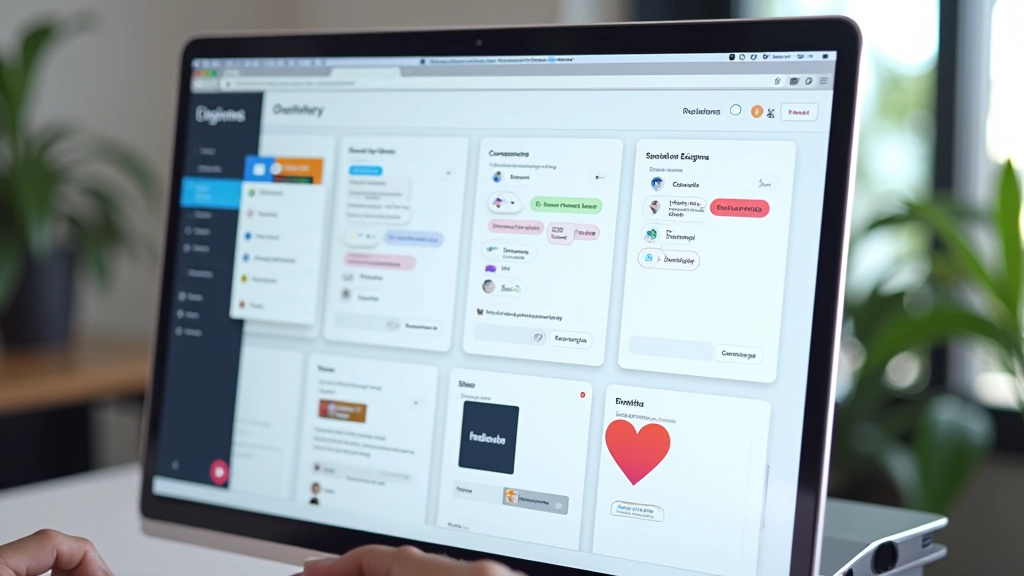

Naming Conventions: The Foundation of Clarity
This is where most teams stumble. Inconsistent naming means designers waste time hunting for components, and new team members have no idea what anything is called. You need a system that works across Figma, your design tokens, and your development handoff.
Use a hierarchical structure. If you’ve got a button component with different sizes and states, name it like this: “Button / Primary / Medium” and “Button / Secondary / Large”. The first part is the component type, the second is the variant category, the third is the specific variant. This way, when a developer looks at your file, they instantly understand what they’re looking at.
Colors need names too. Don’t call them “Blue-500” if you don’t know what that means. Name them for their purpose: “Primary Action”, “Success”, “Warning”, “Disabled State”. Teams understand intent better than arbitrary numbers.
Building Components That Scale
Figma components are powerful, but they’re only as good as how you structure them. Every component you create should have a clear purpose and a specific set of variants. If you’re creating a button component, decide upfront: what sizes do we need? What states? Primary, secondary, tertiary? Destructive actions?
Start simple. A button might have three sizes (small, medium, large) and four types (primary, secondary, tertiary, ghost). That’s already 12 variations. Before you add more, ask yourself: will designers actually use this? Does it solve a real problem?
Documentation inside Figma matters more than you think. Add descriptions to your components explaining when to use each variant. Put a quick note in the component description: “Use primary for main actions, secondary for supporting actions.” It takes 30 seconds and saves your team hours of confusion.


Team Workflows and Collaboration
Here’s where a lot of design systems fall apart: the team doesn’t actually use them. You’ve got this beautiful system sitting in a Figma file, but nobody’s integrating it into their daily work. The solution is making your system accessible and part of the actual design workflow.
Set up your team files so designers can drag components directly into their projects. Create a shared library file that everyone has access to. When someone needs a button, they shouldn’t have to search three different files or copy-paste from screenshots. They should drag it in from the Assets panel.
Version control matters too. When you update a component in your main file, all the designs using that component get the update automatically. But designers can detach if they need custom variations. This flexibility is what makes Figma’s component system so powerful.
Maintaining Your System Over Time
The real work starts after you’ve built your design system. Maintenance is everything. Systems decay when nobody’s responsible for them. You need to decide who owns the system and how changes get approved.
Create a process for component requests. When someone wants a new component or needs to change an existing one, they can’t just do it in their own file and hope everyone else follows suit. There should be a clear request process. Someone reviews it. Someone updates the main library. Someone communicates the change to the team.
Document everything. Seriously. Create a guide that explains your system, shows examples, and lists all your components. This doesn’t need to be a 200-page design bible. A well-organized Figma file with clear pages and descriptions is enough. New designers can open it, see what’s available, and start using it immediately.
Your design system isn’t done when you launch it — that’s when the real work begins. Plan for updates, gather feedback, and evolve it based on how your team actually uses it.
Key Takeaways
Start With Structure
Organize your components into clear categories. Foundations, components, and patterns. Everything in one main file, not scattered across 10 different places.
Use Consistent Naming
Hierarchical naming like “Button / Primary / Large” makes sense to everyone. Designers understand it, developers understand it. No confusion.
Make It Accessible
Your system only works if your team actually uses it. Shared libraries, clear documentation, and components they can drag directly into their work.
Plan for Maintenance
Assign ownership. Create a process for updates. Keep documentation current. Your system only stays valuable if someone’s actively maintaining it.
About This Guide
This article provides educational information about design system principles and Figma best practices. The approaches discussed are recommendations based on common workflows and industry standards. Every team’s needs are different — what works for one organization might need adjustment for another. Always test methodologies with your specific team structure and project requirements before implementing them at scale. Design systems evolve, and you should regularly review and adapt your approach based on actual team feedback and usage patterns.