Collaborating in Figma: Team Workflows and Best Practices
Master real-time collaboration features, file organization, and feedback systems that make teamwork smoother and faster.
Why Team Collaboration Matters in Design
Designing alone is one thing. But when you’re working with developers, product managers, and other designers? That’s where things get complicated. We’re talking about multiple people touching the same files, offering feedback in real-time, and trying not to accidentally overwrite each other’s work.
The good news is that Figma’s built for this. It’s not just a design tool—it’s a collaboration platform. Once you understand how to set up your files properly and use the right features, your team moves faster. Feedback happens live. Changes sync instantly. And everyone’s always looking at the latest version.
We’re going to walk through the features that actually matter, how to organize your workspace so teams don’t step on each other’s toes, and the workflows that keep things smooth even when you’ve got 8 people in a file at once.

Real-Time Collaboration Features That Actually Work
Figma gives you tools to work together without the chaos. Here’s what you need to know.
Live Multiplayer Editing
See exactly what your teammates are doing in real-time. Watch their cursors move, see their selections, and follow along as changes happen. You’ll notice right away if someone’s working on the component you were about to edit.
Inline Comments & Threads
Drop a comment directly on the design. Mention specific people, attach it to a frame or element, and build conversation threads. No more jumping between Slack and Figma wondering what feedback refers to.
Version History & Snapshots
Every change gets tracked automatically. Go back to any previous version if something goes wrong. Pin important snapshots so your team knows which versions matter—like “Final for Dev Handoff” or “Client Approved.”
Shared Libraries
Create one source of truth for components, styles, and assets. When you update a library component, it updates everywhere it’s used. Your team stays in sync instead of having 10 different button styles floating around.
Stakeholder Viewing & Review Links
Share a design with people who don’t have Figma accounts. They can view, comment, and leave feedback without needing to log in. Perfect for client reviews or getting input from non-designers on the team.
Handoff & Specs for Developers
Generate automatically updated specs with measurements, colors, fonts, and code snippets. Developers can inspect elements and grab what they need without asking you a hundred questions.
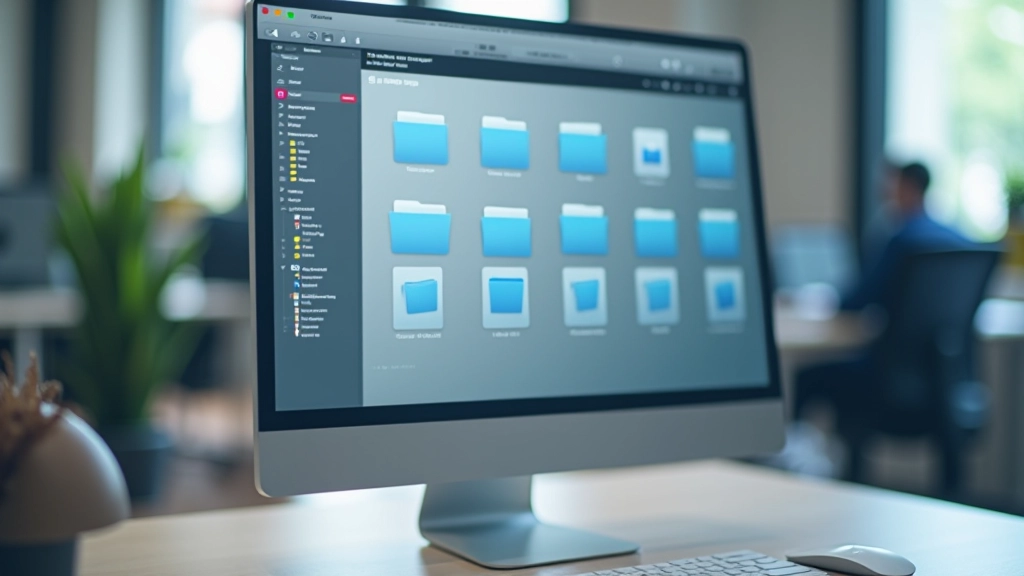
File Organization That Scales
Here’s where a lot of teams stumble. You start with one file. Then you’ve got 12 designers editing it at the same time. Load times get terrible. People can’t find anything. Someone accidentally deletes a component that’s used on 40 frames.
The fix? Think about structure from day one. Don’t just dump everything into one massive file.
Separate by Feature or Page
One file per major feature or page section. Your homepage gets its own file. The checkout flow gets another. This keeps file sizes manageable and prevents everyone from stepping on each other.
Create a Shared Library File
One file that contains only components, styles, and shared assets. Every other file links to this library. When a button component updates, it cascades everywhere automatically. Your design system stays consistent.
Use Frames as Clear Sections
Group related work into frames. Instead of 200 artboards scattered randomly, you’ve got 15 well-named frames that everyone can navigate quickly. Use consistent naming so teammates know what’s what.
Archive Old Versions
Keep your active workspace clean. Move completed projects or old explorations into an archive folder. Version history keeps everything anyway, so you’re not losing anything. You’re just keeping the current workspace focused.
Establishing Workflows Your Team Will Actually Follow
The right process makes collaboration effortless. Here’s what works.
Daily Standup Check-ins
Five minutes. Who’s working on what today? What’s blocking anyone? Are there files where multiple people will collide? This prevents surprises and keeps everyone aligned. You don’t need formal meetings—a Slack thread works perfectly.
Clear Naming Conventions
Pages named like “Homepage – Desktop” not “v3 final”. Frames labeled “Hero Section” not “MAIN”. Components called “Button / Primary” not “BTN1”. When everyone uses the same system, finding things takes seconds instead of minutes.
Comment Protocol
Agree on how you’ll use comments. Design feedback gets tagged #feedback. Questions get #question. Client comments get #client-review. This makes it easy to filter through feedback without drowning in threads.
Version Snapshots at Key Moments
When you hit a milestone—client approval, design freeze, ready for dev—pin that snapshot. Label it clearly. Your team always knows which version to build from. No confusion about “which design are we actually shipping?”
Managing Feedback Effectively
Feedback is essential. But when you’ve got 20 comments and no way to track which ones you’ve addressed, things get messy.
Use Comment Threads, Not Separate Comments
Keep related feedback in one thread. Designer suggests a change, you reply with your thinking, they acknowledge. Instead of 5 separate comments saying the same thing, you’ve got one organized conversation.
Resolve Comments When You Address Them
Figma lets you mark comments as resolved. Do this when you’ve actually made the change or decided not to. It clears your board so you’re not looking at old, irrelevant feedback. New viewers see clean, current comments.
Request Reviews at Specific Points
Don’t ask for feedback constantly. Do it at meaningful moments—design exploration phase, design system review, before handoff to developers. This prevents feedback overload and keeps everyone focused on the current stage.
Document Decisions in Pins
When you decide something after feedback—”we’re going with this color”—pin that version. Write a quick note about why. Your team sees the decision history. Months later, someone won’t ask “why did we choose this?”
Preparing for Developer Handoff
The moment designers hand work to developers is crucial. Figma makes this cleaner than ever. You’re not emailing PNGs and writing a 10-page spec doc. Developers open your file, inspect elements, and grab exactly what they need.
Start by organizing your file for inspection. Use consistent naming. Group related elements logically. Add documentation frames explaining complex patterns or animations. When developers open the file, they should understand the design immediately.
Then use Figma’s developer mode. It shows measurements, colors in different formats, font details, spacing—all automatically. Include a “Read Me” frame explaining any special considerations. Your developers get everything they need without asking questions.

Plugins That Make Collaboration Smoother
Figma’s ecosystem extends what you can do. Here are plugins that improve team workflows.
Design System Plugins
Tools like Design Tokens and Zeroheight help sync your design system across Figma and code. Updates in one place cascade everywhere. Your developers use the same spacing scale and color palette you designed.
Content Management
Plugins like Airtable sync live data into your designs. Show real product information, user lists, or current content instead of lorem ipsum. Your team reviews designs with real context.
Export & Documentation
Tools generate design documentation automatically. Export specs, create component libraries, generate code snippets. Less manual work creating handoff materials means more time actually designing.
Workflow Automation
Plugins integrate with Slack, Jira, and other tools. Get notified when files are shared. Automatically create tasks from design work. Keep your entire team in sync without jumping between apps.
Making It Work for Your Team
Collaboration isn’t automatic. You need the right structure, clear processes, and tools that support the way you work. Figma handles the technical side. The rest? That’s on you and your team.
Start by picking one thing from this guide. Maybe it’s setting up shared libraries. Or establishing a naming convention. Or using version snapshots. Don’t try to change everything at once. Pick one thing, implement it properly, and let your team get comfortable with it.
After a few weeks, you’ll notice the difference. Fewer questions. Faster feedback cycles. Fewer accidental overwrites. That’s when you add the next practice. Before long, your team is collaborating smoothly and shipping faster. That’s the whole point.
Want to go deeper? Explore our guide on components and design systems, or check out best practices for prototyping.
View Related ArticlesAbout This Guide
This article is educational content designed to help you understand collaboration workflows in Figma. While we’ve shared practices that work well for many teams, your specific workflow may vary based on team size, project complexity, and organizational needs. We recommend testing these approaches with your team and adapting them to what works best for your situation. Always refer to Figma’s official documentation for the most current information about features and best practices.